

Part 6: Running Ansible from Jenkins
Run Ansible playbooks by Jenkins
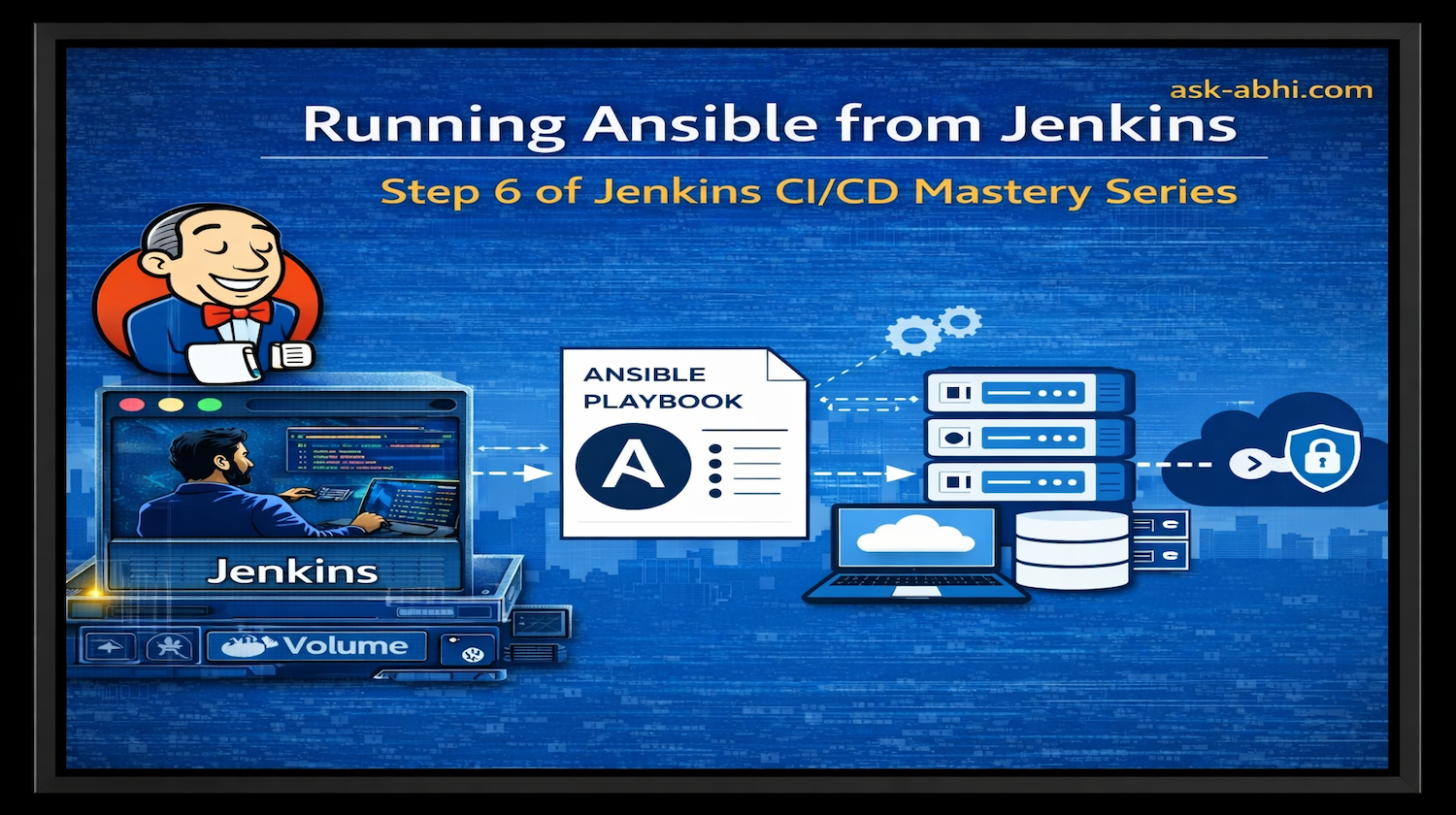
Jenkins CI/CD Series
Goal
Enable Jenkins to execute Ansible automation tasks by integrating Ansible into the Jenkins container, allowing centralized orchestration of remote infrastructure using playbooks.
Purpose
The purpose of this part is to extend your CI/CD pipeline capabilities by introducing configuration management with Ansible.
By the end of this setup, you will:
Run Ansible commands directly from Jenkins
Manage remote systems using Ansible inventory + playbooks
Automate infrastructure tasks via Jenkins jobs
Establish a foundation for Infrastructure as Code (IaC)
This bridges the gap between CI/CD pipelines and infrastructure automation, which is a core DevOps skill.
Prerequisites
Before starting this part, ensure you have:
- Ready to use
Hostand thedirectorystructure to runDockerfilesanddocker-compose.yml(Refer to Part 1)
Step-by-step implementation
Install Ansible on Docker (on an existing Jenkins Container)
Create another folder /home/jenkins/jenkins_home/jenkins-ansible$
- Create a customized Dockerfile for Jenkins to create a Jenkins container to support Ansible
FROM jenkins/jenkins
USER root

RUN apt-get update && apt-get install python3-pip -y

# New lines to set up a virtual environment
####
ENV ANSIBLE_VENV=/ansible_venv
RUN mkdir $ANSIBLE_VENV && \
    chown jenkins:jenkins $ANSIBLE_VENV && \
    apt-get install python3-venv -y
####

USER jenkins

# Activate the virtual environment
RUN python3 -m venv $ANSIBLE_VENV

# Use the venv to install Ansible
RUN $ANSIBLE_VENV/bin/pip3 install ansible

# Ensure the Ansible binary is accessible
ENV PATH=\(PATH:\)ANSIBLE_VENV/bin
- Go back to one more directory, where we have our Docker Compose file, and update the content to fetch details from the Dockerfile we created in the earlier step.
/home/jenkins/jenkins_home/docker-compose.yml
services:
  jenkins:
    container_name: jenkins
    image: jenkins-ansible
    build:
      context: jenkins-ansible
    ports:
      - "8080:8080"
    volumes:
      - $PWD/jenkins_home:/var/jenkins_home
    networks:
      - net

  remote_host:
    container_name: remote-host
    image: remote-host
    build:
      context: centos7
    volumes:
      - "$PWD/aws-s3.sh:/tmp/script.sh"
    networks:
      - net

  db_host:
    container_name: db
    image: mysql:8.0
    environment:
      MYSQL_ROOT_PASSWORD: 1234
    volumes:
      - $PWD/db_data:/var/lib/mysql
    networks:
      - net

networks:
  net:
Tips - Update Jenkins block (
image: jenkins-ansible, build: context: jenkins-ansible)
docker compose build
Note- Always run the docker compose from the directory where we have docker-compose.yml
- The new Jenkins Image has been built

- Create a Jenkins container by using this Image
#Below commands used to vrify Jenkins container has ansible installed

docker compose up -d
docker ps
docker exec -it jenkins bash
ansible

Note- Typing ansible will show avaible options to run any command means, its installed
Created an Ansible folder for the Ansible home directory
/home/jenkins/jenkins_home/ansible
Note- /jenkins_home is acting as an volumes for our jenkins container since we have given same context in docker-compose.yml
- Copy the remote key to the Ansible folder directly
home/jenkins/jenkins_home$ sudo cp centos7/remote-key jenkins_home/ansible/
Since we're moving around the remote-key file, it's always a good idea to ensure that Jenkins has the correct permissions for it.
- Run the following command to set the right permissions:
docker exec # Asks Docker to run a command
-u root # Using the root user
jenkins # On the container named jenkins
bash # Using bash
-c "chmod 400 /var/jenkins_home/ansible/remote-key && chown 1000:1000 /var/jenkins_home/ansible -R" # Set proper permissions
- What does this do?
chmod 400 /tmp/remote-key → Sets read-only permissions for the key file.
chown 1000:1000 /tmp/remote-key → Ensures Jenkins (user ID 1000) owns the key.
This step prevents permission issues when using the key inside the container.
- Create Inventory in Ansible
Create a file named hosts on /home/jenkins/jenkins_home/jenkins-ansible and add the below content
[all:vars]

ansible_connection - ssh

[test]
test1 ansible_host=remote_host ansible_user=remote_user ansible_private_key_file=/var/jenkins_home/ansible/remote-key
- Copy the hosts file to the
Jenkinscontainer injenkins_home/ansiblefolder
cp hosts ../jenkins_home/ansible
- Log in to the Jenkins container and run the command
docker exec -it jenkins bash
- Verify files

- Run the inventory
ansible -i hosts -m ping test1

Note - Run ansible command from where is the inventory file located
any issues to connect, it must be SSH key permission issue or when connecting to from jenkins to remote_host
ssh -i /var/jenkins_home/ansible/remote-key remote_user@remote_host
Create a Playbook play.yml at the host directory /home/jenkins/jenkins_home/jenkins-ansible
- name: Test playbook
  hosts: test1
  tasks:
    - name: Create file using shell
      shell: echo Hello World > /tmp/ansible-file
- Copy play.yml to the Jenkins container
cp play.yml ../jenkins_home/ansible/
Log in to the Jenkins container
Check if the file is present

- Run the
play.yml
ansible-playbook -i hosts play.yml

- Check where the file is generated?
Here it is on the remote-host

Jenkins and Ansible Integration
- Log in to the Jenkins console and install the Ansible plugin.

- Create Freestyle pipeline ansible-test


Click on
Build NowandConsole OutputVerify output

Done!!!
Conclusion
In this part, you successfully integrated Ansible with Jenkins, transforming your CI/CD pipeline into a powerful automation engine capable of managing infrastructure.
You have:
Installed Ansible inside a custom Jenkins container
Configured secure SSH access using private keys
Created and tested Ansible inventory and playbooks
Executed automation tasks on remote systems
Integrated Ansible execution into Jenkins jobs
This is a major milestone in your DevOps journey — you are no longer just building pipelines, but automating infrastructure at scale.
This setup reflects real-world practices where Jenkins acts as an orchestrator, and Ansible handles configuration management and deployment.
🔗 Continue the Series
⬅️ Previous Article: Part 5 Making Jenkins Automation Scalable
➡️ Next Article: Part 7 Jenkins Pipeline from GitHub
⭐ If you found this article useful, follow https://ask-abhi.com for more DevOps tutorials.


